
Nonprofit Accounting Software: The Complete 2026 Guide
Choosing the right accounting software can save your nonprofit dozens of hours each month and keep you audit-ready year-round.
If you've ever tried to run a nonprofit's books in QuickBooks and wondered why nothing quite fits — why there's no good way to track a restricted grant, why your chart of accounts feels wrong, why generating a Statement of Financial Position requires a workaround — you're not imagining things. Standard accounting software was built for businesses. Nonprofits operate under different rules.
This guide covers everything you need to know about nonprofit accounting software: how to evaluate your options, what "free" really means, why fund accounting matters, whether to go cloud or desktop, and how to make the switch without losing your mind.
How Nonprofit Accounting Actually Differs
Before we talk software, let's talk about why you can't just use what everyone else uses.
Fund accounting, not profit tracking. Businesses track revenue minus expenses to calculate profit. Nonprofits track how money flows in and out of designated funds — each with its own restrictions and reporting requirements. A $50,000 grant for youth programs can't be used to fix the roof, and your accounting system needs to enforce that.
Different financial statements. Nonprofits produce a Statement of Financial Position (not a balance sheet), a Statement of Activities (not an income statement), and a Statement of Functional Expenses. Most business software doesn't generate these natively.
Net asset classifications. Under ASC 958, nonprofits classify net assets as either "without donor restrictions" or "with donor restrictions." Your software needs to track and report on these categories — not just at year-end, but in real time so you can make informed spending decisions.
Grant compliance. If you receive government grants, you may need to track expenses by grant, generate reports for each funder, and maintain an audit trail that satisfies OMB Uniform Guidance. "We'll figure it out at year-end" is how organizations lose grant funding.
Board reporting. Your board needs to understand the organization's financial health without an accounting degree. Good nonprofit software makes it easy to generate board-ready reports that show program spending, fundraising efficiency, and cash reserves by fund.
What to Look For in Nonprofit Accounting Software
Here's your evaluation checklist, roughly in order of importance:
Must-Haves
- True fund accounting — track revenue and expenses by fund, not just by department or class
- Nonprofit financial statements — Statement of Financial Position, Statement of Activities, Statement of Functional Expenses, generated natively
- Net asset classification — with and without donor restrictions, tracked automatically
- Grant tracking — assign expenses to specific grants with budget-to-actual reporting
- Bank reconciliation — automatic matching with bank feeds
- Audit trail — every transaction logged with who entered it, when, and any modifications
Important
- Budget vs. actual reporting — by fund, program, and grant
- Multi-user access with role-based permissions
- Accounts payable and receivable — bill management, invoice tracking
- 1099 preparation — you're paying contractors, and the IRS wants to know
- Integrations — donor management (Bloomerang, DonorPerfect), payroll, banking
Nice to Have
- Automated allocations — split shared costs (rent, utilities) across programs automatically
- Dashboard with real-time financial overview
- Document attachment — attach receipts and invoices to transactions
- Multi-entity support — if you manage multiple related organizations
Free vs. Paid: What "Free" Actually Means
Let's be honest about the free options. When someone says "free nonprofit accounting software," they usually mean one of three things:
1. Freemium Software
The base product is free, but the features you actually need cost money.
Wave is the most common example. It's genuinely free for basic accounting — invoicing, receipt scanning, financial reports. But:
- No fund accounting
- No nonprofit-specific reports
- Limited to one user (the person who manages it)
- Payroll is an add-on
- No grant tracking
Bottom line: Wave works for a very small nonprofit (under $100K budget) with simple finances — maybe a community group with no grants and one bank account. Once you have restricted funds, multiple programs, or need an audit, you'll outgrow it fast.
2. Free Trials
Software that's free for 14–30 days, then requires a subscription.
Most nonprofit accounting platforms (Aplos, AccuFund, Araize) offer trials. These are useful for evaluation but not a long-term solution. Don't start entering real data during a trial unless you're prepared to subscribe.
3. Donated or Discounted Licenses
TechSoup is the big one here. They broker donated and discounted software for nonprofits. You can get significant discounts on:
- QuickBooks (though it still won't do fund accounting natively)
- Microsoft 365
- Various other business tools
Intuit's discount program offers QuickBooks Online at reduced rates for 501(c)(3) organizations. But remember: discounted QuickBooks is still QuickBooks — you'll need workarounds for fund accounting, and those workarounds create complexity.
4. Truly Free / Open Source
GnuCash is free, open-source, and technically capable of fund accounting. But:
- The interface looks like it was designed in 2003 (because it was)
- No cloud access — it's desktop software
- No bank feeds or automatic reconciliation
- The learning curve is steep
- Support is community forums only
- No integrations with donor management or payroll systems
Bottom line: GnuCash can work if you have a technically inclined volunteer bookkeeper with time to set it up properly. For most organizations, the time cost exceeds the money saved.
The Real Calculus
Here's what most "should I use free software?" conversations miss: the cost of accounting software isn't just the subscription price. It's the subscription price plus the bookkeeper hours needed to work around the software's limitations.
If free software saves you $50/month but costs your bookkeeper an extra 5 hours per month in workarounds, and you're paying that bookkeeper $30/hour, you're spending $150 to save $50. That math gets worse as your organization grows.
Our recommendation: If your budget is under $50,000 and you have no restricted funds, free software is fine. Once you cross either threshold — more money or restricted funds — invest in proper nonprofit accounting software. The cost is almost always justified by the time savings and reduced audit risk.
Cloud vs. Desktop: Making the Right Choice
This used to be a real debate. Now it's mostly settled — cloud wins for almost everyone. But let's walk through why, because some organizations still have legitimate reasons to consider desktop software.
Cloud Accounting
What it means: Your software runs in a web browser. Your data lives on the provider's servers. You access it from anywhere with an internet connection.
Advantages:
- Access from anywhere. Your ED can check cash flow from home. Your bookkeeper can work remotely. Your auditor can review records without visiting your office.
- Automatic updates. You always have the latest version. No IT person needed to install patches.
- Automatic backups. Your data is replicated across multiple servers. If your office floods, your books are fine.
- Bank feeds. Cloud software connects directly to your bank for automatic transaction import. This alone saves hours per month.
- Multi-user by default. Everyone gets their own login. No file-sharing conflicts.
- Integrations. Cloud platforms connect to donor management, payroll, banking, and other tools via APIs.
Disadvantages:
- Requires internet. If your connection is unreliable, you'll have frustrating moments (though this is increasingly rare).
- Ongoing subscription cost. You're paying monthly or annually forever — there's no "buy once" option.
- Data lives off-site. Some organizations have policies requiring data to stay on local servers (this is uncommon for nonprofits but worth checking).
Desktop Accounting
What it means: Software installed on a specific computer. Your data lives on that computer's hard drive (or your local network).
Advantages:
- One-time purchase (sometimes — many desktop products have moved to subscriptions)
- No internet required for day-to-day use
- Data stays local — you control where it lives
Disadvantages:
- Single point of failure. If that computer dies and you haven't backed up, your books are gone.
- Version management. You need to manually install updates, and old versions eventually lose support.
- One user at a time (typically). Want your bookkeeper and ED to both work in the system? Buy another license.
- No bank feeds (usually). You're downloading and importing bank statements manually.
- No remote access without setting up a VPN or remote desktop.
The Verdict
Unless you have a specific policy requirement to keep data on-premises, go cloud. The productivity gains from bank feeds alone typically justify the subscription cost, and automatic backups eliminate a category of risk that has ended more than a few small nonprofits.
Migration Tips: Moving from Desktop to Cloud
If you're currently on desktop software and ready to move:
- Pick your migration date. The start of a fiscal year is ideal. The start of a quarter is good. Mid-month is painful.
- Export everything. Chart of accounts, vendor list, customer list, open invoices, and at least 2 years of transaction history.
- Don't try to migrate every historical transaction. Most organizations import opening balances as of their migration date and keep the old system accessible (read-only) for historical lookups.
- Run parallel for one month. Enter transactions in both systems for 30 days to catch discrepancies.
- Clean up your chart of accounts first. Migration is a great excuse to fix the messy account structure you've been living with. Don't import the mess into the new system.
- Budget 2–4 weeks for the transition, including testing and training.
Fund Accounting: The Deep Dive
Fund accounting is the single biggest differentiator between nonprofit and business accounting. If your software doesn't handle it well, everything else is a workaround.
What Fund Accounting Actually Is
Fund accounting is a system where you track financial resources in separate "funds," each with its own self-balancing set of accounts. Think of it like having multiple mini-ledgers inside one accounting system, each tracking the money and activity for a specific purpose.
This matters because donors and grantmakers give money for specific purposes, and your organization is legally and ethically obligated to spend it accordingly.
The Three Categories of Funds
Nonprofit funds generally fall into three categories:
1. Unrestricted Funds (Without Donor Restrictions)
Money you can spend on anything that advances your mission. This includes general donations, membership dues, and revenue from services. This is your operating fund — it pays the rent, the staff, the electric bill, and anything else the board approves.
Example: A donor gives $500 to your annual fund with no specific instructions. That's unrestricted. You can use it for programs, overhead, or reserves.
2. Temporarily Restricted Funds (With Donor Restrictions — Time or Purpose)
Money that comes with conditions that will eventually be met. Either it's restricted to a specific purpose ("use this for the after-school program") or a specific time period ("use this after January 1, 2026").
Example: A foundation awards a $25,000 grant for your literacy program. You can only spend it on literacy program expenses. Once spent on eligible costs, the restriction is "released" and the funds effectively become unrestricted in your reporting.
3. Permanently Restricted Funds (Endowments)
Money where the principal must be maintained forever (or for a very long time). Only the investment income can be spent, and sometimes even that has restrictions.
Example: A donor gives $100,000 to establish an endowment. The principal stays invested. Your organization can spend the annual investment returns (maybe 4–5% per year), potentially with restrictions on what those returns fund.
Why Standard Software Fails at Fund Accounting
QuickBooks, Xero, and FreshBooks use "classes" or "tracking categories" as their workaround for fund tracking. Here's why that falls short:
- Classes aren't self-balancing. In true fund accounting, each fund has its own assets, liabilities, and net assets. Classes in QuickBooks are just labels on transactions — they don't enforce that a fund's expenses can't exceed its revenue.
- No restriction tracking. There's no mechanism to flag funds as restricted, track restriction releases, or generate reports showing restricted vs. unrestricted balances.
- Reports require manual work. Generating a Statement of Activities by fund requires custom reports and often manual manipulation in Excel.
- No budget by fund. You can budget by class in some platforms, but it's not the same as having a fund-level budget with automatic variance tracking.
What Good Fund Accounting Software Does
- Maintains separate self-balancing ledgers for each fund
- Tracks net asset classifications automatically
- Handles restriction releases when conditions are met
- Generates financial statements by fund and in aggregate
- Supports inter-fund transfers with proper documentation
- Provides budget-to-actual reporting at the fund level
- Creates audit-ready reports that satisfy grant requirements
Evaluating Your Options: The Landscape
The nonprofit accounting software market breaks down into three tiers:
Entry Level ($0–$50/month)
Who it's for: Small nonprofits under $500K budget, simple fund structures, 1–2 users.
Options include: Wave (free, no fund accounting), QuickBooks Online with nonprofit workarounds (discounted via TechSoup), Aplos (starting around $40/month).
Trade-offs: You'll get basic accounting done, but fund tracking will be limited or require workarounds. Reports may need manual formatting for board presentations and audits.
Mid-Range ($50–$300/month)
Who it's for: Established nonprofits with multiple programs, grants, and the need for proper fund accounting.
Options include: Aplos (higher tiers), QuickBooks with Nonprofit+ add-ons, Sage Intacct (entry level), AccuFund, Araize FastFund.
Trade-offs: Better fund accounting and reporting, but some platforms still bolt nonprofit features onto a business accounting core. Look for platforms built for nonprofits from the ground up — they handle fund accounting more naturally.
Enterprise ($300+/month)
Who it's for: Large nonprofits with complex multi-entity structures, significant grant portfolios, and audit requirements.
Options include: Sage Intacct (full), Blackbaud Financial Edge NXT, MIP Fund Accounting.
Trade-offs: Powerful and comprehensive, but expensive, complex to implement, and often require dedicated training. Implementation can take months and cost more than the first year of software.
DIY vs. Done-for-You Bookkeeping
Software is only half the equation. Someone needs to actually do the bookkeeping. You have three options:
DIY (Staff or Volunteer)
Best for: Very small nonprofits where the ED or a board treasurer handles the books.
Pros: No additional cost. Full control.
Cons: Takes time away from mission work. Risk of errors if the person isn't an experienced bookkeeper. Turnover creates knowledge gaps.
Make it work by: Choosing intuitive software, setting up automations (bank feeds, recurring transactions), and having a CPA review quarterly.
Outsourced Bookkeeper
Best for: Small to mid-size nonprofits that need professional bookkeeping but can't justify a full-time hire.
Pros: Professional expertise. Scales up and down with your needs. Often cheaper than a full-time employee when you factor in benefits.
Cons: They're not in your office — communication requires intention. You're still responsible for understanding your own finances.
Make it work by: Choosing a bookkeeper with nonprofit experience (not just small business). Meeting monthly to review financials. Keeping your own access to the system so you're never locked out of your own books.
Done-for-You Platform
Best for: Organizations that want bookkeeping handled as a service, not a task to manage.
Pros: Software and bookkeeping in one package. Purpose-built workflows. Consistent quality.
Cons: Less control over the day-to-day process. Need to trust the provider.
This is what Holdings offers. Banking and accounting in one platform, with bookkeeping support built in. Your transactions flow from your bank account into your books automatically, categorized and reconciled. You focus on your mission; the financial infrastructure runs itself.
How Holdings Approaches Nonprofit Accounting
Holdings combines banking and accounting in a single platform built for nonprofits. Instead of connecting a bank to separate software to a separate bookkeeper, everything lives in one place.
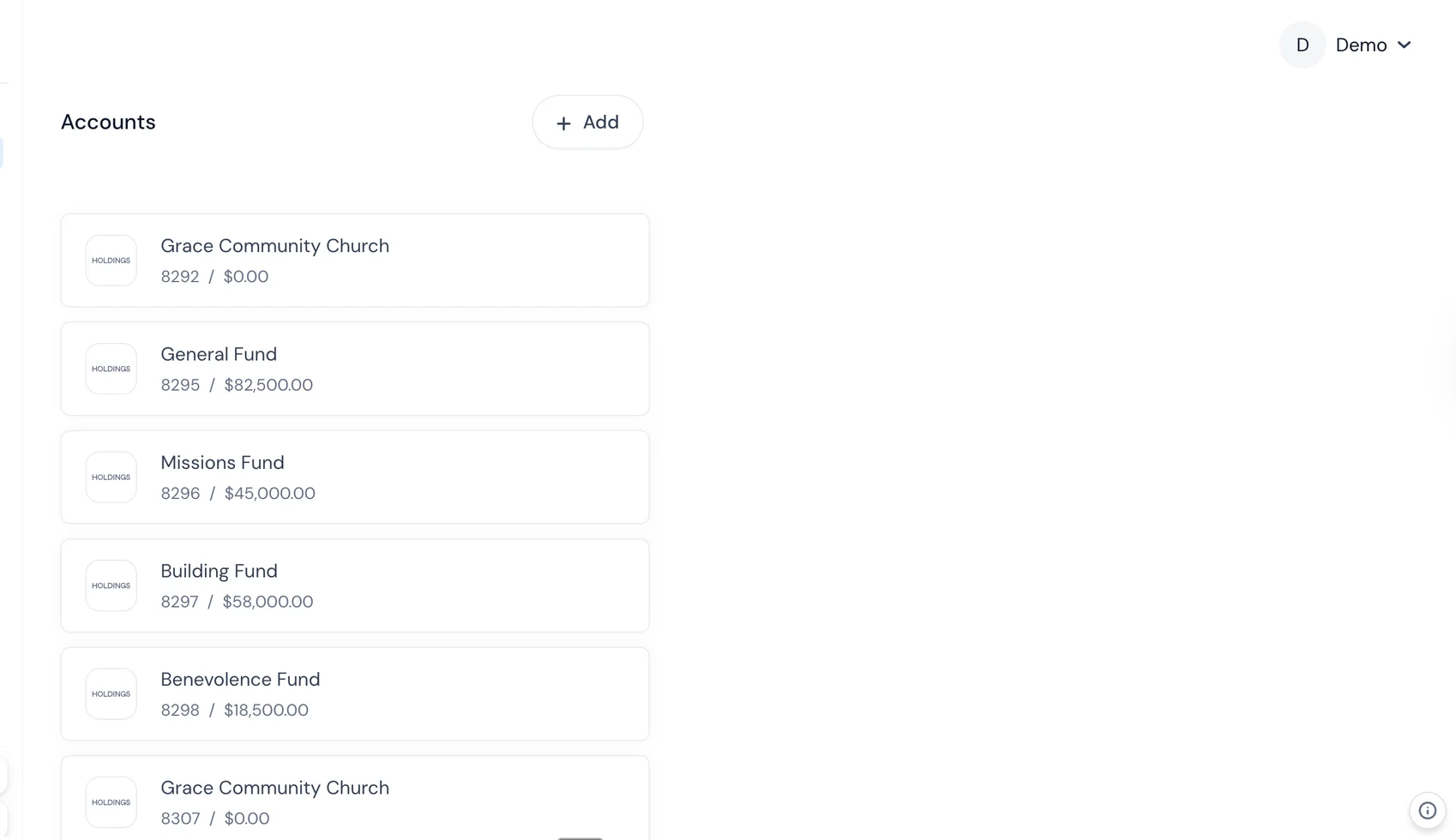
Fund accounting is native. Not a workaround, not a class, not a tag — actual fund-level tracking with self-balancing ledgers.
Transactions categorize automatically. Money flows from your bank account into your books with AI-assisted categorization. You review and approve rather than manually entering everything.
Reports are board-ready. Generate your Statement of Financial Position, Statement of Activities, and other reports with a few clicks. No Excel manipulation required.
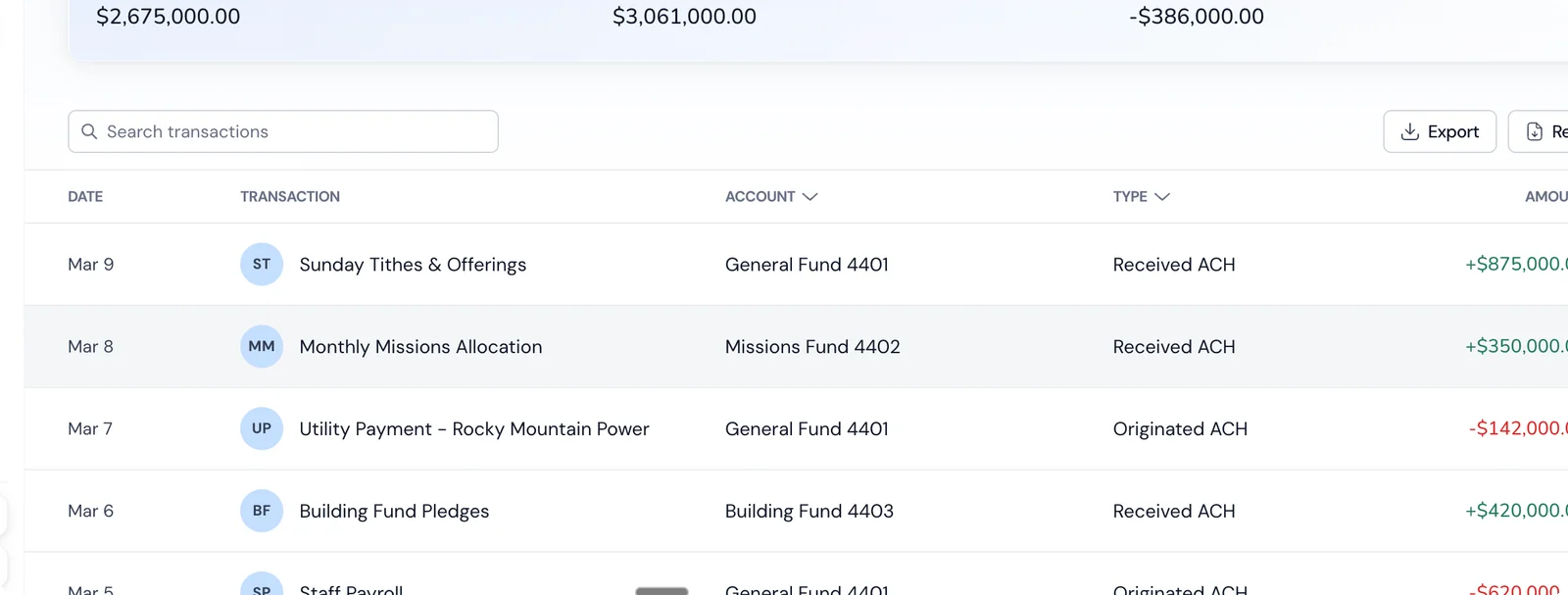
Multi-user access. Your team sees what they need to see. Role-based permissions keep things organized.
No separate software to manage. One login, one platform, one place where your financial life lives. When your bank and your books are the same system, reconciliation happens automatically.
Related Reading
- [Nonprofit Accounting Software Comparison](/resources/blog/nonprofit-accounting-software-comparison) — QuickBooks, Aplos, Sage Intacct, Wave, and Holdings compared head-to-head.
- [Nonprofit Bookkeeping Services Guide](/resources/blog/nonprofit-bookkeeping-services-guide) — How to evaluate bookkeeping providers and what a good engagement looks like.
- [Nonprofit Bookkeeping Pricing](/resources/blog/nonprofit-bookkeeping-pricing-and-packages) — Pricing models, typical costs, and what should be included.
- [Nonprofit Bank Accounts Guide](/resources/blog/nonprofit-bank-accounts-guide) — How to choose the right bank account to complement your accounting setup.
- [Holdings for Nonprofits](/solutions/nonprofits) — Banking + accounting designed for nonprofit organizations.
Frequently Asked Questions
Can I use QuickBooks for my nonprofit?
You can, but you'll be working around its limitations. QuickBooks is business accounting software with some nonprofit add-ons. It works for simple nonprofits with minimal fund tracking needs. Once you have restricted grants, multiple programs, or audit requirements, the workarounds become burdensome.
How much should a nonprofit budget for accounting software?
For organizations under $1M: $50–$150/month is reasonable. For $1M–$5M: $150–$500/month. For $5M+: $500–$2,000/month. Factor in implementation costs for enterprise solutions — they can be 2–5x the annual subscription.
What's the difference between fund accounting and regular accounting?
Regular (business) accounting tracks money flowing in and out to calculate profit. Fund accounting tracks money flowing in and out of designated funds, each with its own restrictions and reporting requirements. The fundamental unit shifts from "the company" to "the fund."
Do we need fund accounting if we're small?
If you receive any restricted donations or grants — yes. Even one restricted grant means you need to track those funds separately and report on them accurately. The complexity isn't about your organization's size; it's about whether donors place restrictions on their gifts.
Can we switch accounting software mid-year?
You can, but it's not ideal. You'll need to import opening balances, and your year-end reports will pull from two systems. If possible, wait for the start of a fiscal year. If you can't wait, the start of a quarter is the next best option.
What about spreadsheets? Can we just use Excel?
For a very small nonprofit with a handful of transactions per month — technically yes. But spreadsheets don't have audit trails, don't connect to your bank, don't enforce data integrity, and don't scale. More importantly, they're error-prone. Studies consistently show that the majority of complex spreadsheets contain formula errors. For something as important as your organization's finances, that's an unacceptable risk.
How do we handle the transition from one system to another?
Start by exporting your chart of accounts and opening balances from the old system. Import those into the new system as of your transition date. Run both systems in parallel for at least one month to catch discrepancies. Keep the old system accessible (even read-only) for at least two years for historical reference and audit purposes. Budget 2–4 weeks for the full transition.
Is cloud accounting safe for donor data?
Reputable cloud accounting platforms use bank-level encryption, SOC 2 compliance, and regular security audits. Your data is typically safer in a professionally managed cloud environment than on a desktop computer in your office. That said, always verify the provider's security certifications before committing.
Related Guides
- Best Free Nonprofit Accounting Software — Side-by-side comparison of free tools
- Free Nonprofit Scorecard — Assess your nonprofit's financial health in 5 minutes
- Nonprofit Bank Accounts Guide — Requirements, documents, and best options
- Best Bank Accounts for Small Nonprofits — Under $500K budget? Start here